Niva Follower Account Setup Guide
Installing the app and setting up your account are two different steps, and the second one deserves the same care as the first. A clean account setup means your profile details are correct, your sign-in works smoothly, and the dashboard reflects the right account from the very first session. Rushing this stage is one of the most common reasons users hit avoidable problems later.
This guide covers the setup process step by step, from the first sign-in to the checks worth running before you place your first order or complete your first task. If you have not installed the app yet, start with the Niva Follower download for Android and finish the installation before working through the account steps below.
Signing In for the First Time
Open the app after installation and follow the sign-in prompts on the opening screens. Enter your details slowly and double-check each field before confirming, because a small typing mistake at this stage can lock you into a frustrating loop of failed attempts. If the app offers more than one sign-in route, pick the one you are most likely to remember and use consistently.
After signing in, wait for the dashboard to load fully before tapping anything. The first load can take a little longer while the app prepares your account view. A patient first launch gives you a clean starting point and confirms that the sign-in actually worked. Readers who need the earlier stage can follow How to install Niva Follower on Android for the full installation walkthrough.
Checking Your Profile Details
Once the dashboard opens, visit your profile area and review every detail shown there. Confirm that the account name matches the social account you intend to use, and that any displayed information looks accurate. This check takes less than a minute, yet it prevents one of the most confusing mistakes in the app: completing tasks or placing orders while connected to the wrong profile.
If anything looks wrong, fix it now rather than later. Correcting profile details is simple at setup time and much more annoying after you have built up activity, balances, and order history around the wrong information.
Connecting the Right Social Account
Niva Follower works around the social account you connect, so take a moment to be certain it is the account you actually want to grow or manage. Many people have more than one social profile, perhaps an old account, a test account, and a main one. Acting on the wrong one wastes both time and coins.
A simple test helps: after connecting, look for a detail only the correct account would show, such as its current follower count or profile photo. When that detail matches, you can proceed with confidence. When it does not, disconnect and reconnect carefully before doing anything else.
Reviewing Permissions During Setup
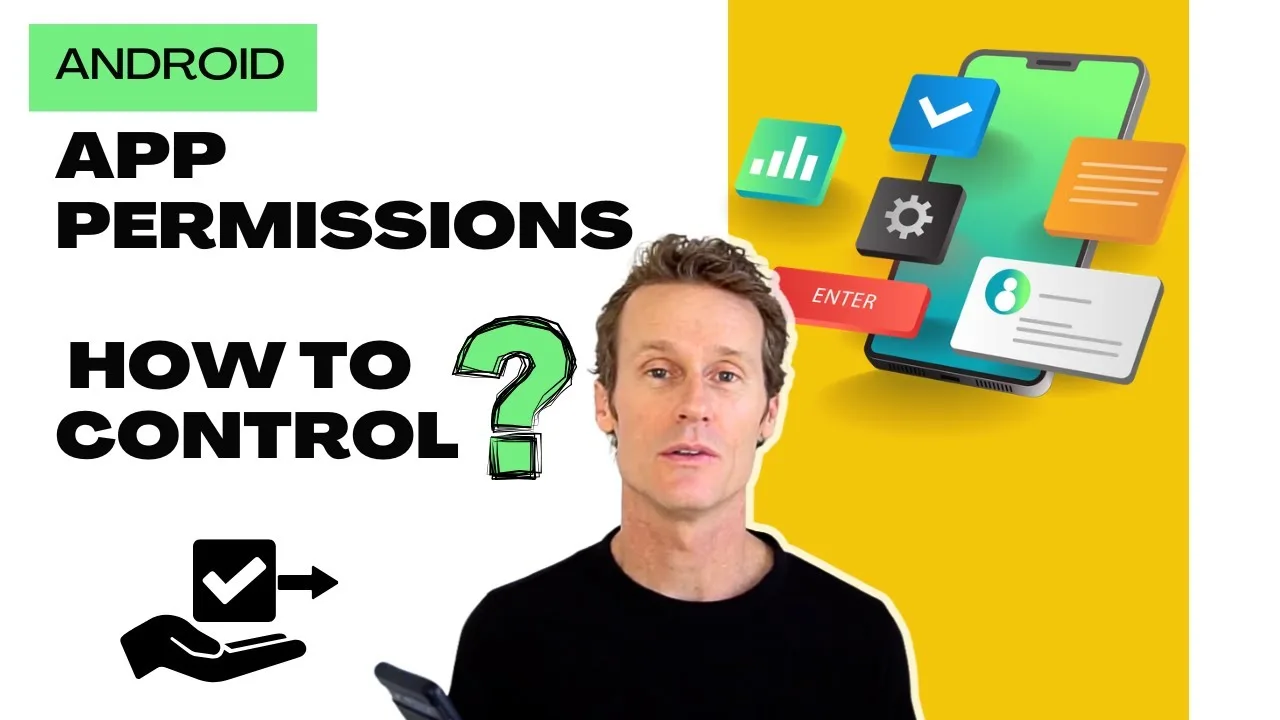
During setup the app may ask for certain permissions. Read each prompt instead of accepting automatically, and allow what the app genuinely needs for the features you plan to use. Permissions granted thoughtfully at setup time lead to fewer interruptions later, because the app is less likely to stop mid-task and ask again.
If you want to understand what each request means before deciding, the Niva Follower permissions explained article breaks the common requests down in plain language. Setup is the calmest moment to make those decisions, well before you are in the middle of a busy session.
Your First Session Checklist
Before ending the setup session, run through a short checklist. Confirm you can sign out and back in without trouble, check that the coin balance area loads, open the task section once so you know where it lives, and look at the order screen without placing anything yet. This short tour removes most of the uncertainty new users feel.
It is also worth noting your starting balance somewhere, even just mentally. Knowing the starting figure makes your first earning and spending changes easy to recognise, which builds trust in how the app is behaving.
Trouble Signing In During Setup
If sign-in does not work on the first attempt, do not keep retrying rapidly with slightly different details, because repeated failures make the real problem harder to spot. Stop, check the obvious causes in order: confirm the details you entered are exactly right, confirm the phone has a working connection, and confirm you are using the same sign-in method you chose at the start. Most setup sign-in problems turn out to be a single mistyped character or a momentary connection drop, both of which a calm re-check finds quickly.
If the details are certainly right and the connection is certainly fine, close the app fully and reopen it before trying once more. A fresh launch clears temporary glitches surprisingly often. Only if the problem survives those steps should you consider whether the account itself needs attention, and at that point a note of exactly what the app displays will make any further help much faster to get.
One last setup habit is worth adopting from the very beginning: keep the details you used somewhere private and reliable, such as a password manager or a notebook kept at home. People forget sign-in details far more often than they expect, especially for apps they use in short sessions. A safe record turns a forgotten detail from a locked-out afternoon into a thirty-second lookup, and it completes a setup process that was careful about everything else.
Final Thoughts
Good account setup is quiet work: correct details, the right connected profile, sensible permissions, and one calm tour of the main screens. It rarely takes more than a few minutes, yet it shapes every session that follows. Set the account up properly once, and daily use becomes a matter of routine instead of repeated fixing.