Niva Follower Permissions Explained
Permission prompts make many Android users uneasy, and that instinct is healthy. Every app should be able to explain why it wants access to something on your phone, and you should feel comfortable deciding what to allow. Niva Follower, like most social tools, asks for a small set of permissions during installation or first use, and each one has a practical reason behind it.
This article explains the common requests in plain language, what happens if you decline them, and how to change your mind later. Understanding permissions makes Niva Follower on Android feel far less mysterious, and it turns an anxious tap into an informed choice.
Why Apps Ask for Permissions at All
Android is built so that apps cannot quietly help themselves to your phone's features. If an app wants to show notifications, reach the internet, or store files, the system puts the request in front of you. That design protects you, but it also means prompts appear even for ordinary, expected behaviour.
The right question is never whether an app asks, but whether what it asks for matches what it does. A social growth tool needs network access to load tasks and orders, and notification access if you want updates. Requests that line up with the app's purpose are normal; the skill is simply checking that they do.
The Common Requests and What They Do
Network access is the most basic requirement, since tasks, balances, and orders all load from online services. Without it, the app cannot function beyond its opening screens. Storage access, when requested, is typically about caching images and temporary files so screens load faster and the app does not download the same content repeatedly.
Notification permission controls whether the app can alert you about finished orders or important account events. It is convenient rather than essential, and the app works without it; you simply check progress manually instead. When you set the app up, the Niva Follower account setup guide shows where these prompts usually appear in the flow.
What Happens If You Decline
Declining a permission is not a disaster, and Android is designed for it. Decline notifications and the app stays quiet. Decline something more central and the related feature may pause, show an error, or ask again when you try to use it. Nothing breaks permanently, and no decision you make at the prompt is final.
This is worth remembering when a prompt appears at a bad moment. It is perfectly fine to decline, finish what you were doing, and revisit the choice calmly later. Apps that pressure you into instant decisions are rare, and Niva Follower's core features make it clear which permissions they actually need.
How to Review Permissions Later
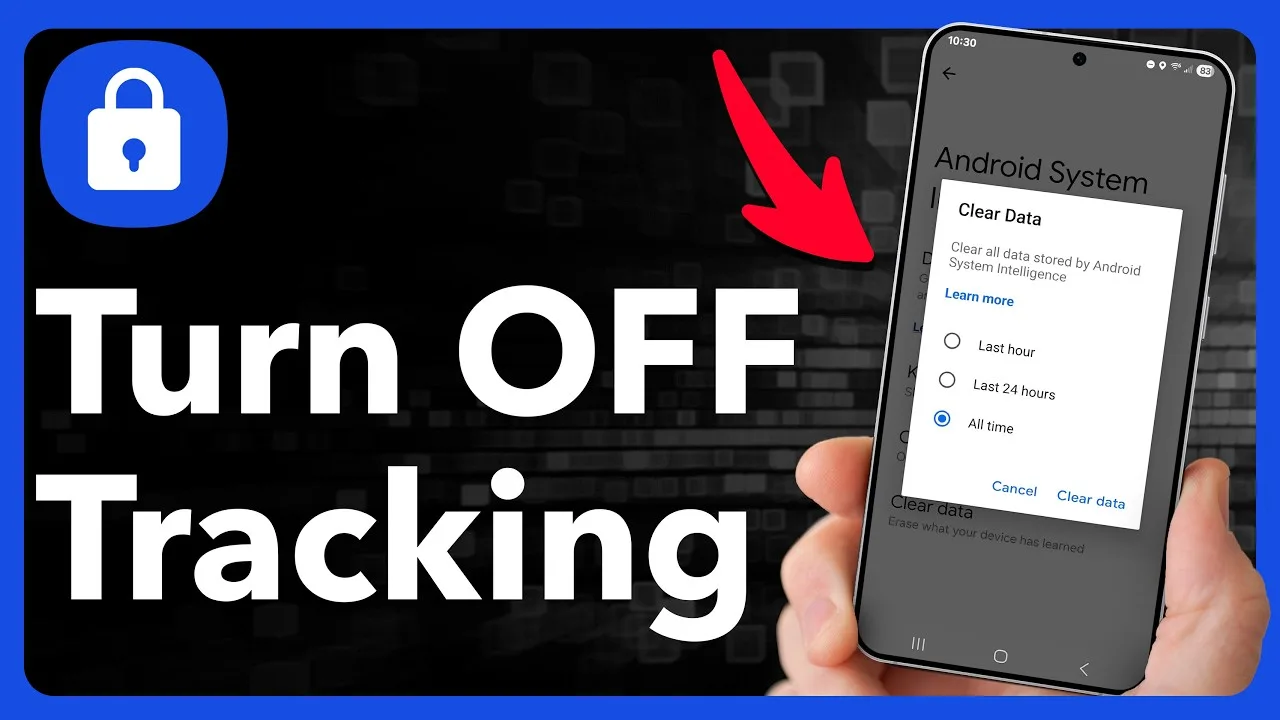
You can review every choice in Android settings. Open your phone's Settings, go to Apps, find Niva Follower, and open its Permissions page. There you can allow or remove each permission individually, and changes take effect immediately. This page is also the quickest way to confirm what the app currently has, rather than relying on memory.
A sensible routine is to glance at this page after major app updates, since updated versions occasionally introduce new requests. If repeated problems appear after a permission change, the troubleshooting steps in Niva Follower not working common problems and fixes help separate permission issues from other causes.
Sensible Habits for Any App
A few habits protect you across every app, not just this one. Allow permissions that clearly match a feature you use. Be cautious with anything that seems unrelated to the app's purpose. Revisit the permissions page every few months, and remove access an app no longer needs because your habits changed.
It is also worth keeping Android itself updated, since newer versions give you finer control, including one-time permissions and automatic removal of access from apps you stopped using. Those system tools do a quiet, valuable job in the background.
Permissions and App Updates
Permissions deserve a fresh look whenever the app updates in a significant way. New features sometimes need new access, and an updated version may ask for something the old one never requested. That is not automatically suspicious; it often simply reflects a feature you have not tried yet. The same test still applies: does the request match something the app does? If yes, decide based on whether you will use that feature. If the connection is unclear, decline for now and see whether anything you actually use stops working.
Updates can also work in your favour. Android steadily adds finer permission controls over time, and newer app versions adopt them, giving you options such as allowing something only while the app is in use. Keeping both Android and the app reasonably current means you always have the most precise controls available, which is the comfortable position to be in.
It is also worth knowing that Android shows you when certain sensitive permissions are used, through indicators and a privacy dashboard on newer versions. Glancing at that dashboard occasionally gives you a factual picture of which apps accessed what, and when. For an app like this one, the picture should look boring: network activity during your sessions and little else. A boring dashboard is a good dashboard, and knowing how to read it puts you firmly in charge of every app on the phone, not just this one.
Final Thoughts
Permissions are a conversation between you and the app, not a trap. Niva Follower's requests follow its features: network for loading, storage for caching, notifications for updates. Allow what matches your usage, decline what does not, and remember that Android settings let you revise any decision in seconds whenever you wish.