Niva Follower Battery and Data Tips
Social apps are used in short bursts throughout the day, and that pattern can quietly cost more battery and mobile data than users expect. Niva Follower is a relatively light app, but session habits, screen time, and connection quality all influence how much of your battery and data plan it consumes. A few deliberate choices keep that cost small without changing how you use the app.
This guide gathers the practical steps that matter most, from planning sessions to choosing the right connection. They are useful for anyone, and especially for readers on limited data plans who chose to install Niva Follower on Android on an older phone or a modest mobile package.
Use Shorter, Planned Sessions
The screen is the biggest battery cost in any app session, and it drains in proportion to time, not tasks completed. A focused ten-minute session where you complete your tasks, place any orders, and leave uses far less battery than an open-ended half hour of drifting between screens. Planning what you intend to do before opening the app is the single most effective battery habit.
Planned sessions help data use too. Every screen load and refresh moves data, and purposeful navigation loads fewer screens than idle browsing. Decide your goal, do it, and close the app; your battery percentage and your data counter will both reflect the discipline.
Prefer Wi-Fi for Longer Sessions
Mobile data radios work harder than Wi-Fi, particularly where signal is weak, and that extra effort shows up as battery drain and heat. If you know a session will be long, such as a big earning stretch, doing it on a stable Wi-Fi connection is kinder to the battery and keeps your mobile data for when you truly need it.
Weak signal deserves special mention. A phone straining to hold a poor connection can burn through battery remarkably fast while accomplishing little. In those moments it is often better to postpone the session entirely. Many of the checks in Niva Follower slow performance fixes overlap with this, because slow loading and high drain frequently share the same cause: a struggling connection.
Mind Background Behaviour
What the app does when you are not looking also counts. Notifications checking in, content refreshing, and the phone waking to handle small events each take a small toll. Reviewing which alerts you actually need reduces background wake-ups, and Android's battery settings show you plainly how much any app has used over recent days.
That battery usage screen is worth visiting once a month. If Niva Follower's share looks larger than your actual use explains, something in your habits or settings is worth adjusting. If it looks proportionate to your sessions, there is nothing to fix, and you can stop wondering about it.
Screen and Display Habits
Brightness is the other major drain you control directly. Indoor use rarely needs full brightness, and lowering it slightly during task sessions saves a surprising amount over a week. If your phone offers a comfortable dark appearance and the app follows the system theme, using it in the evening can also help on many modern screens.
It also helps to let the screen sleep promptly when a session ends rather than leaving the app open on a table. A short screen timeout in Android settings is a small setting with a daily payoff across every app you own. Device-specific behaviour varies, as the Niva Follower device compatibility guide notes when discussing different phone classes.
Watch Data With the Built-In Counters
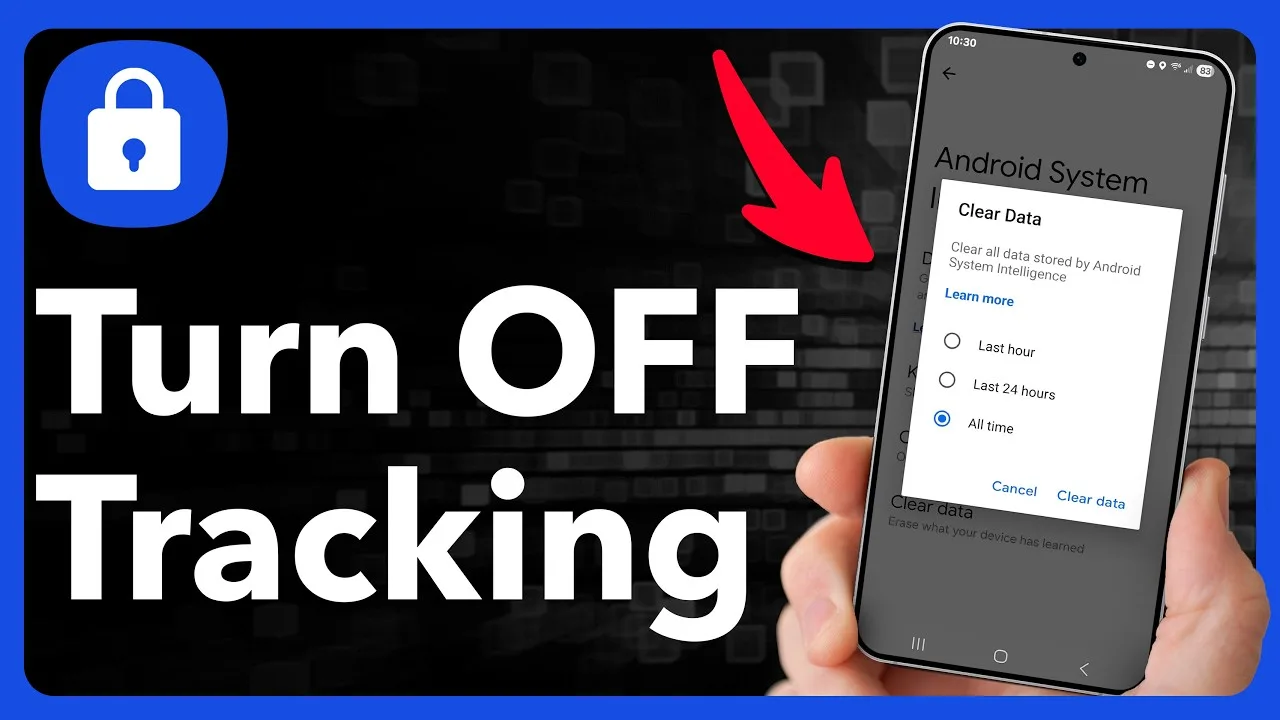
Android tracks data use per app, and checking that page replaces guesswork with numbers. Open Settings, find the data usage section, and look at what Niva Follower used this cycle. For most users the figure is modest, because the app's screens are comparatively light, but images and repeated loading add up during very heavy weeks.
If the number surprises you, the usual explanation is long sessions on mobile data rather than any hidden behaviour. Restricting background data for the app is also possible in the same settings area, though it can delay order updates and alerts, so treat it as an option for strict plans rather than a default.
Reading Your Own Usage Pattern
After a week of normal use, look at Android's battery and data pages together and read them like a short story about your habits. Heavy use concentrated in your usual session times means the app is simply reflecting your routine, and any saving must come from shorter sessions or better connections. Small usage scattered across hours you never opened the app points instead to background activity, which notification and background settings can tame.
This five-minute reading is worth more than any generic tip, because it targets your actual pattern rather than an average user's. Repeat it whenever your routine changes significantly, such as a new phone, a new plan, or a new daily schedule, and your settings will keep matching your real life instead of the life you had when you first installed the app.
None of these steps asks you to use the app less or enjoy it less. They simply move the same activity onto cheaper footing: a better connection, a brighter plan, a shorter route through the screens. That is the right frame for all resource management on a phone. The apps you value should fit inside the battery and data you have, shaped by small choices, rather than forcing you to choose between using them and saving resources for something else.
Final Thoughts
Battery and data costs respond to habits more than settings: shorter planned sessions, Wi-Fi for longer work, sensible brightness, and a monthly glance at Android's own usage counters. Apply those four and Niva Follower stays a light guest on your phone, leaving your battery and data plan for everything else your day demands.