Niva Follower Slow Performance Fixes
An app that once felt quick can gradually become sluggish, and the change is usually caused by ordinary, fixable things rather than any serious fault. Screens take longer to load, taps respond late, and task sessions stop being enjoyable. Before assuming the worst, it is worth working through the common causes in order, because most slowdowns surrender to simple steps.
This guide covers the fixes that help most often when Niva Follower APK file based installations feel slow on Android, from clearing cached data to easing the load your phone carries. Work through them one at a time and test the app after each, so you learn which change actually made the difference on your device.
Clear the App Cache
The cache is where the app stores temporary files such as images and screen data so it does not fetch everything fresh each time. Over weeks of use, that store can grow cluttered, and a cluttered cache slows the very thing it was meant to speed up. Clearing it is safe: your account, balance, and history are not stored in the cache.
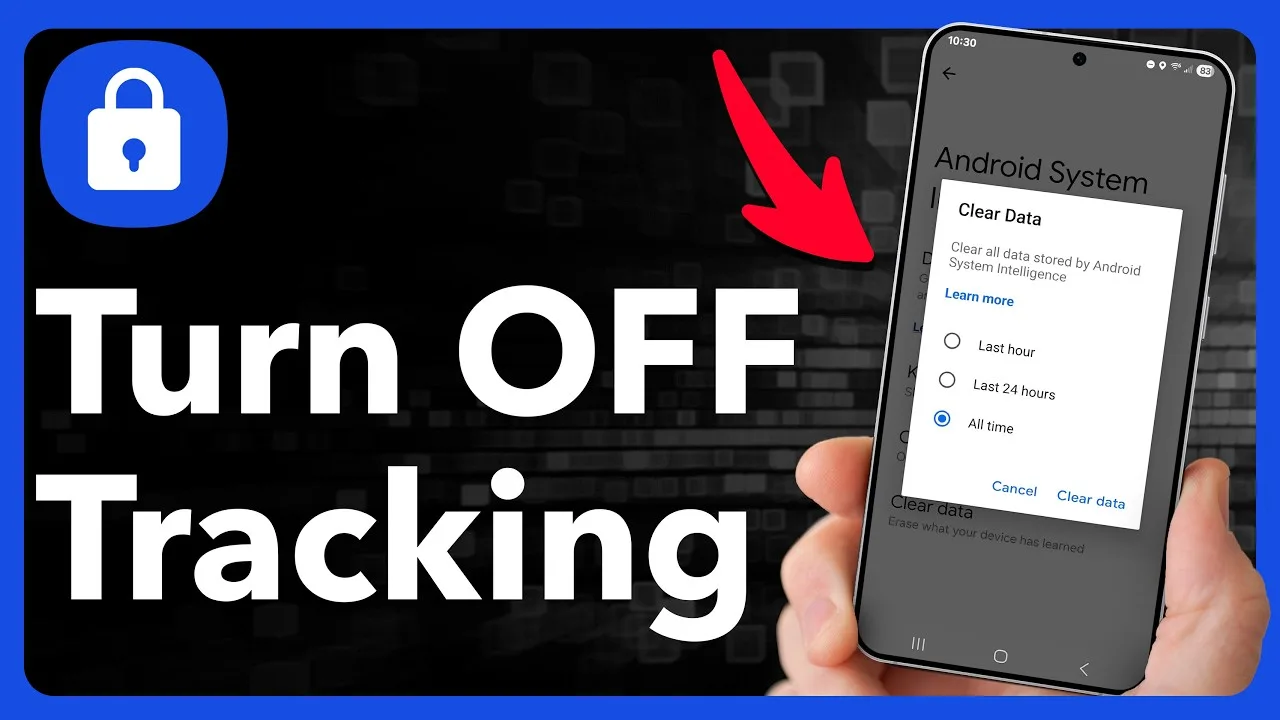
Open Android Settings, go to Apps, select Niva Follower, open Storage, and tap Clear Cache. Avoid Clear Data unless you deliberately want to sign in again from scratch. Then reopen the app and give the first load a little patience while fresh files are fetched; following loads should feel noticeably lighter.
Free Up General Storage Space
Android itself slows down when storage is nearly full, because the system needs working room for temporary files across all apps. If your phone is warning about low space, every app suffers, and a social tool with lots of images suffers early. Deleting unused apps, old downloads, and duplicate videos often restores speed everywhere at once.
Aim to keep at least a small cushion of free space rather than running at the limit. This single habit prevents a whole family of performance complaints, not just in this app but across the phone.
Reduce Background Load
Phones juggling many active apps have less memory and processing attention left for the one you are using. If several heavy apps, games, or downloads are running while you use Niva Follower, screens will lag. Closing what you are not using before a task session gives the app a fair share of the phone's resources.
A quick restart achieves the same result more thoroughly and is worth doing if the phone has not been restarted in weeks. Many users are surprised how much a simple restart improves an app they were ready to blame. For broader fault-finding beyond speed, see Niva Follower not working common problems and fixes.
Check the Connection Honestly
Some apparent app slowness is really connection slowness. Tasks, balances, and orders all load from online services, so a weak signal makes every screen feel like the app's fault. Test by loading something else online; if that is slow too, the network is the problem and the app is just where you noticed it.
Moving closer to the router, switching between Wi-Fi and mobile data, or simply waiting for a congested period to pass can transform the experience. Judging the app's speed should always happen on a connection you know is healthy. The related habits in Niva Follower battery and data tips also help here, since a phone struggling for signal works harder and drains faster.
Keep the App and Android Updated
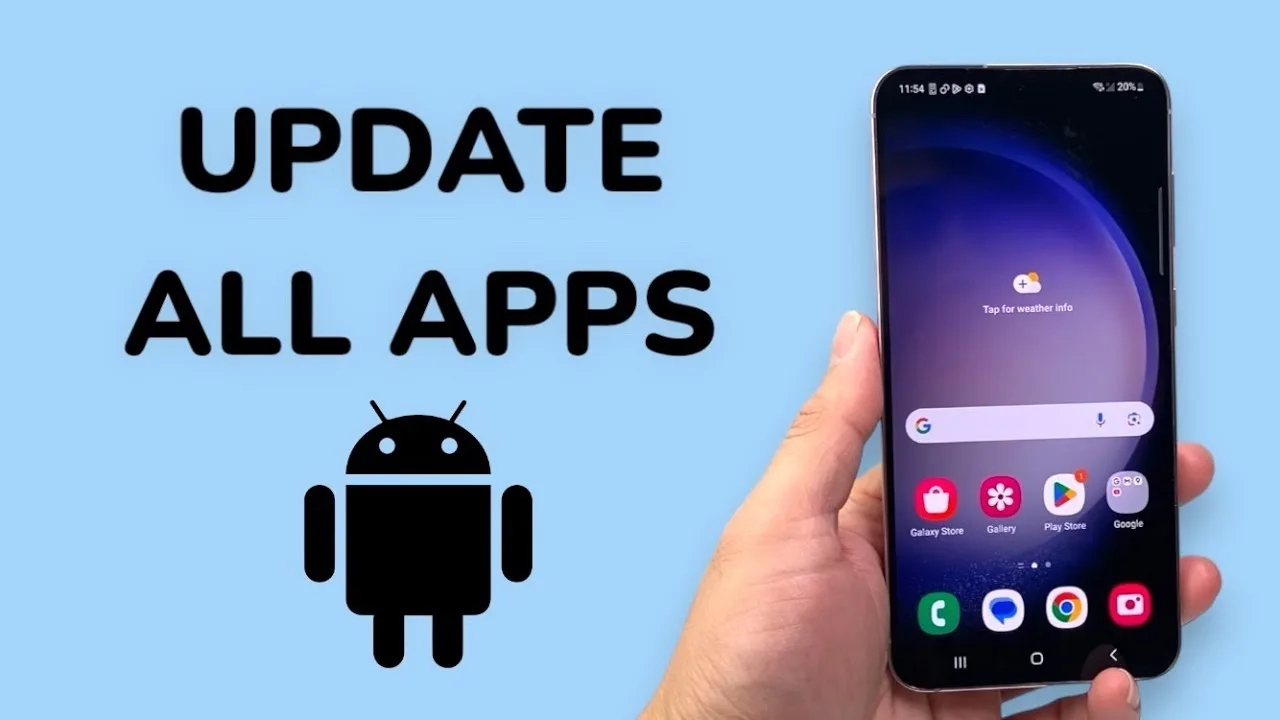
Performance fixes are a routine part of app updates, and running a very old version can mean living with problems that were solved long ago. The same applies to Android itself and to the system components that render app screens. If slowness appeared gradually over months, outdated software is a plausible contributor.
Update during a calm moment rather than mid-session, then judge speed over a day of normal use instead of the first launch, which is often slower while the new version settles its files.
When Slowness Is Actually the Phone Ageing
Sometimes every fix helps a little and nothing helps completely, and the honest explanation is that the phone itself is reaching its limits. Older devices with small amounts of memory juggle modern apps less comfortably each year, and a single app cannot fully escape that reality. Even then, the situation is manageable: shorter sessions, fewer background apps, and a leaner set of installed tools all stretch an older phone's useful life considerably.
Judge the phone by the whole experience rather than one app. If everything is slow, the device is the common factor and your expectations should adjust kindly. If only this app is slow while others feel normal, keep investigating the app-specific causes first, because a problem isolated to one app usually has an isolated, fixable reason behind it.
A useful way to finish a round of fixing is to write down what worked. Phones develop recurring habits, and a slowness that returns in three months is very often the same cause returning: a cache that filled again, storage that crept back to the limit, or an update that was skipped. Your short note turns the next occurrence from a fresh investigation into a two-minute repeat of a known cure, which is how experienced users keep older phones feeling responsive for years.
Final Thoughts
A slow app is usually a phone asking for basic housekeeping: clear the cache, keep some storage free, close competing apps, restart occasionally, and be honest about the connection. Work through those steps in order and most Niva Follower slowdowns disappear without anything dramatic. What remains after that routine is a genuine issue worth investigating in its own right.